Enforce Login with Single Sign On (for Druid Portal admins)
By default, the login page allows users to sign in using either Single Sign On (SSO)—if enabled on the tenant—or standard user credentials (username and password).

To mitigate the risk of DDoS attacks, credential theft, and unauthorized access from orphaned accounts, you can restrict login to SSO only, provided you have already enabled and configured login with an external provider (OpenID Connect, LDAP, Google, or WS-Federation). This ensures that all authentication follows your organization's centralized security policies and MFA requirements.
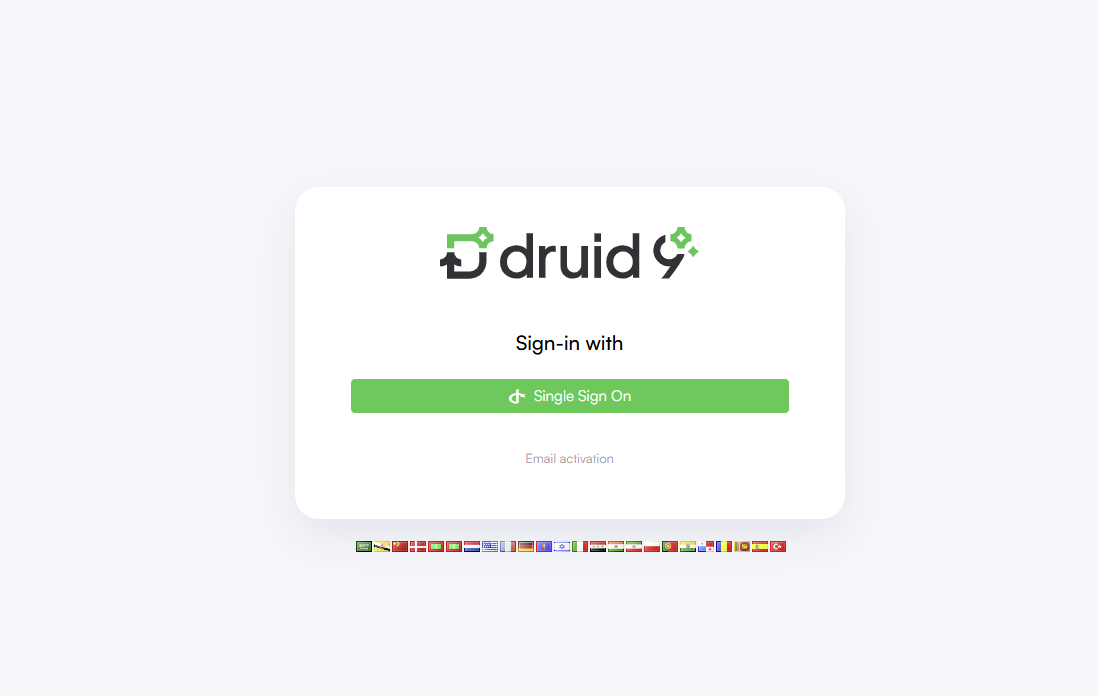
Enforce SSO Login
To enforce SSO login:
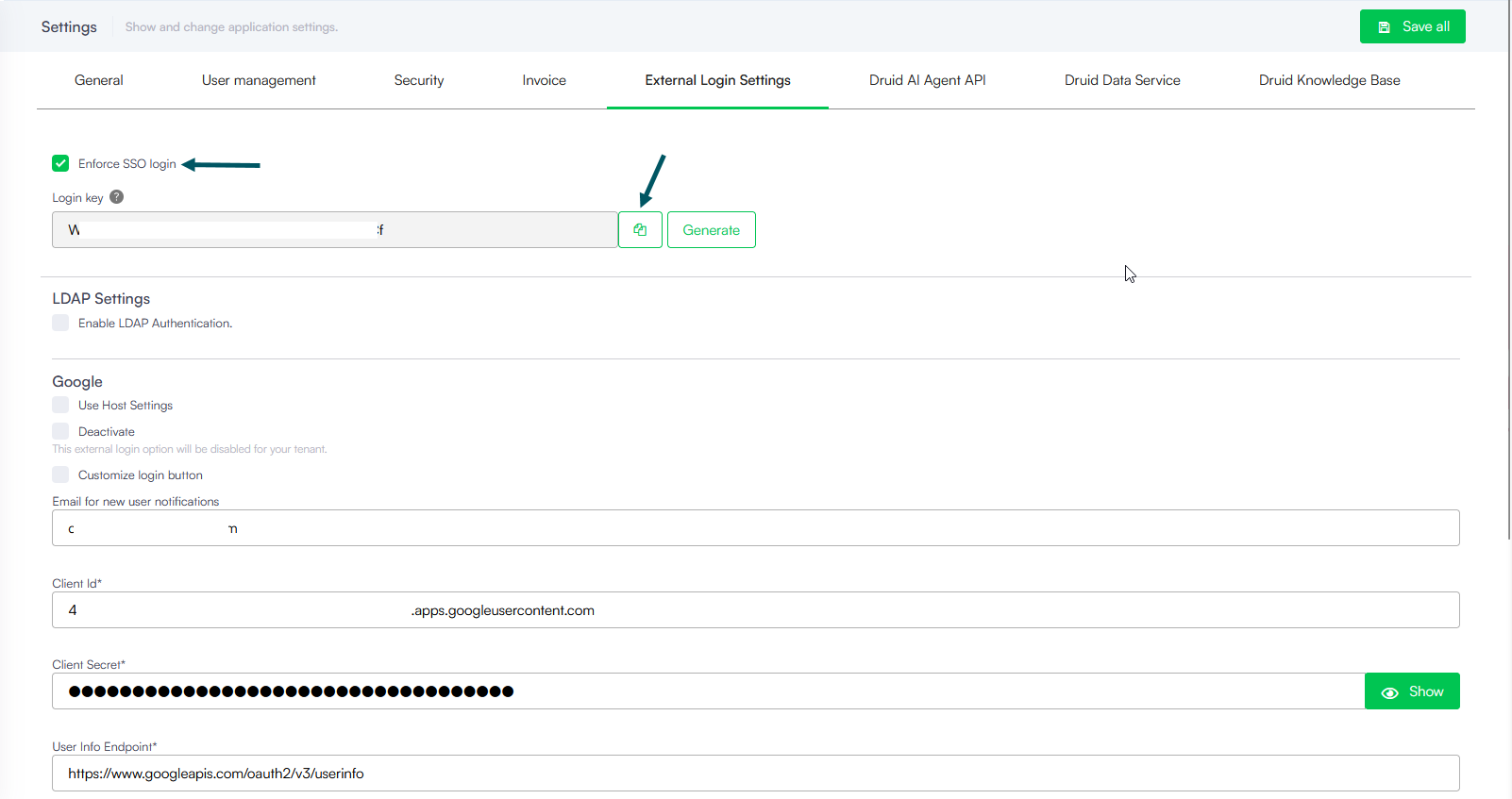
- Go to Administration > Settings.
- Click the External Login Settings tab.
- Select Enforce SSO login and copy the Login key.
- Save this key in a secure vault for admin access only.
- Click the Save all button at the top right corner of the page.
Restore Mixed Mode Authentication
If you need to re-enable both SSO and credentials login (mixed mode), you must use the Login key to bypass the enforcement.
You can do this in two ways:
- Access your standard login page and, in the browser address bar, add ?login-key=<login key value> to the end of the URL, replacing <login key value> with the key you previously saved in your secure vault.
- Access your tenant using the following URL format:
<tenancyName>.<subdomains>.druidplatform.com/account/login?login-key=<login key value>
Once the default login page appears:
- Log in with your admin credentials (username and password).
- Go to Administration > Settings.
- Click the External Login Settings tab.
- Disable Enforce SSO login.
- Click the Save all button at the top right corner of the page to save the settings.